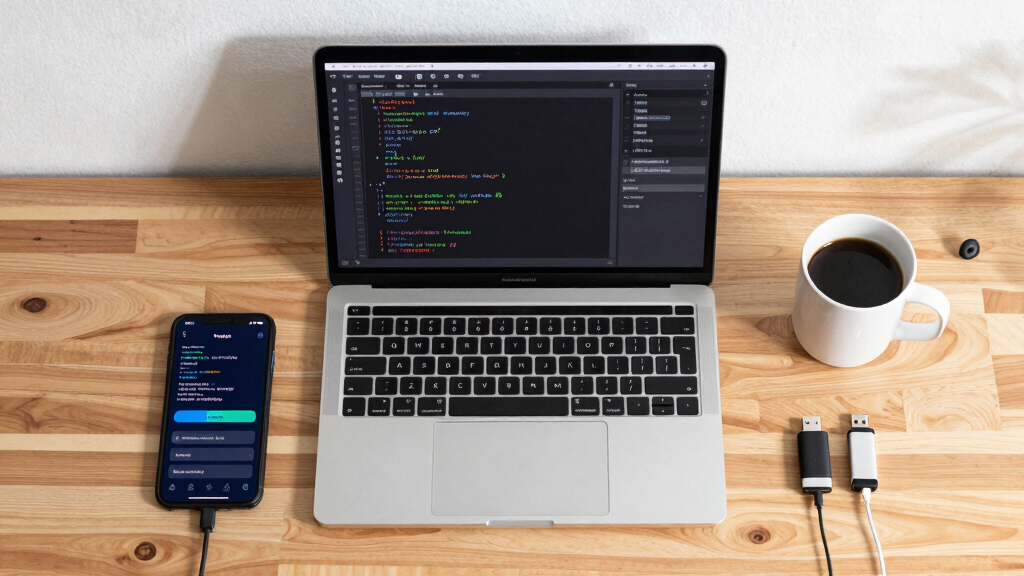

This guide helps students install and use fundamental software development tools to write, debug, and manage code effectively. It is designed for beginners starting with programming or students improving their workflow. Follow these steps to set up a productive coding environment quickly.
Difficulty: Beginner | Time: 1-2 hours
What You’ll Need
Tools & Materials:
- Computer with internet access
- Text editor or IDE (such as Visual Studio Code)
- Web browser
- Git client (optional but recommended)
Knowledge:
- Basic computer skills
- Understanding of how to download and install software
Ensure your computer meets the minimum system requirements for the tools listed. Allocate about 1-2 hours for installation and initial setup.

MASTERING VISUAL STUDIO CODE: The Ultimate Step by Step Guide to Supercharge Your Developer Workflow (Exploring AI & Mastering Software Book 8)
As an affiliate, we earn on qualifying purchases.
As an affiliate, we earn on qualifying purchases.
Before You Start
Close all unnecessary applications before beginning installations. Verify your internet connection is stable. If using a school or shared computer, ensure you have administrator rights to install software.

Version Control with Git: Powerful Tools and Techniques for Collaborative Software Development
As an affiliate, we earn on qualifying purchases.
As an affiliate, we earn on qualifying purchases.
Step-by-Step Instructions
Step 1: Download and install a code editor
Visit the official website of Visual Studio Code at https://code.visualstudio.com/. Download the installer compatible with your operating system. Run the installer and follow the on-screen prompts to complete installation.
Tip: Choose the default settings during installation unless you have specific preferences. Consider installing recommended extensions later for language support.
Check: Open Visual Studio Code. It launches without errors and displays the welcome screen.
Step 2: Install Git for version control
Download Git from https://git-scm.com/downloads. Select the installer for your OS and run it. During setup, accept default options, especially for PATH and line ending conversions.
Tip: If unfamiliar with Git, consider reading basic tutorials on version control to understand its benefits.
Check: Open a command prompt or terminal and type ‘git –version’. You should see the Git version number displayed.
Step 3: Configure your development environment
Open Visual Studio Code. Install relevant language extensions (e.g., Python, JavaScript) via the Extensions view (Ctrl+Shift+X or Cmd+Shift+X). Create a new folder for your projects and open it in VS Code.
Tip: Install only extensions relevant to your current projects to keep your environment lightweight.
Check: Create a new file (e.g., hello.py) and write a simple program. Save and run it to verify proper setup.
Step 4: Set up a basic version control workflow
Open a terminal in VS Code or the system command line. Navigate to your project folder. Type git init to initialize a new repository. Add files with git add ., then commit with git commit -m 'Initial commit'.
Tip: Regularly commit changes with descriptive messages to track your progress effectively.
Check: Type git log to see your commit history. Your initial commit should be listed.

Competitive Programming 4 – Book 1: The Lower Bound of Programming Contests in the 2020s
As an affiliate, we earn on qualifying purchases.
As an affiliate, we earn on qualifying purchases.
Common Mistakes to Avoid
- Installing multiple heavy extensions that slow down the editor. — Install only necessary extensions for your current projects. Remove unused extensions regularly.
- Not configuring Git properly, leading to commit errors. — Set your user name and email with
git config --global user.name 'Your Name'andgit config --global user.email 'youremail@example.com'before starting. - Running code without saving changes, which causes outdated code to execute. — Save files before running or testing code to ensure latest changes are used.

Avid Pro Tools Artist – Music Production Software – Perpetual License
This item is sold and shipped as a download card with printed instructions on how to download the…
As an affiliate, we earn on qualifying purchases.
As an affiliate, we earn on qualifying purchases.
Troubleshooting
Problem: VS Code fails to recognize installed language extensions.
Solution: Open the Extensions view, search for the language, and ensure it is installed and enabled. Restart VS Code if necessary.
Problem: Git commands show errors or are unrecognized.
Solution: Verify Git installation with ‘git –version’. Ensure Git is added to your system PATH. Reinstall if needed.
Problem: Unable to run code or get output.
Solution: Check that you have saved your file. Verify your run configuration matches the language and environment setup.
What Success Looks Like
You have installed and launched a code editor, set up version control, written a simple program, and successfully committed code to your repository. Your environment runs code correctly and tracks changes effectively.
Next Steps
Practice creating, editing, and saving projects. Explore additional extensions for language support or debugging tools. Regularly commit your work and back up repositories. Seek tutorials on specific programming languages or concepts as needed.
Frequently Asked Questions
Can I use different code editors?
Yes. Other options include Sublime Text, Atom, or IDEs like IntelliJ IDEA. Choose based on your language and preference, but ensure you can install necessary extensions and tools.
Do I need to learn Git immediately?
While not mandatory at first, learning Git helps manage code versions, collaborate, and prevent data loss. Start with basic commands like git init, git add, and git commit.
How do I run code in my editor?
Most editors support running code via built-in terminals or extensions. Follow language-specific instructions; for many, pressing F5 or using run commands will execute your code.